
Use an external MCP client when you want an AI tool outside Dokki to inspect, search, create, or update Dokki resources. Dokki supports remote MCP clients including Codex, Claude, Claude Code, Cursor, and any compatible custom client.
Visual guide
Start from external client setup
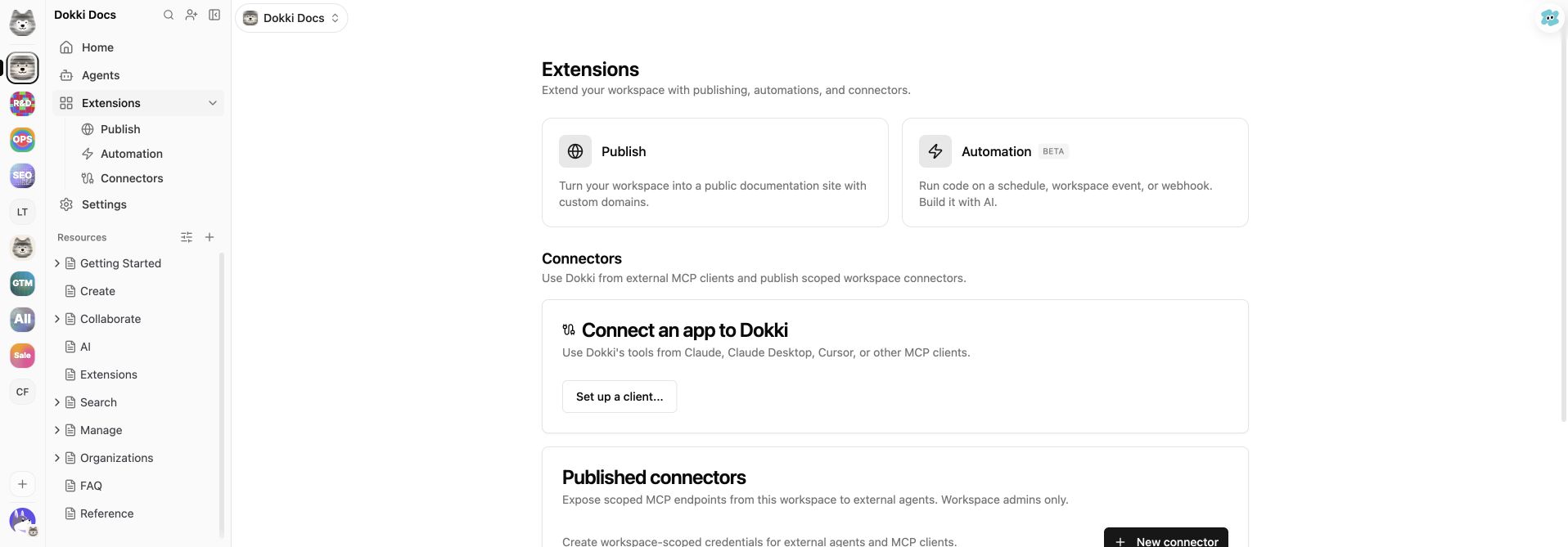
Open Workspace → Extensions, then select Set up a client.... Copy client-specific setup for Claude, Codex, Claude Code, Cursor, or another MCP client. The unified Documents endpoint is /api/mcp. Choose OAuth for an interactive authorization flow, or API Key when the client must use a non-interactive credential.
For Codex CLI, the dialog provides an mcp-remote bridge configuration. For clients that support remote MCP directly, use the generated endpoint or configuration instead of inventing a local token format.
Dokki also ships official plugins for Claude Code and Codex. They come preconfigured with a compact set of high-level Dokki tools served from the /mcp/v2 endpoint, so you install the plugin and authorize instead of configuring an endpoint by hand. Use the plugin when your client is Claude Code or Codex; use the setup dialog above for other clients.
OAuth setup
Add the unified Dokki endpoint in the client and begin its OAuth connection.
Sign in to Dokki when the client opens the authorization flow.
On the consent screen, select Personal, one or more organizations, specific non-archived workspaces, or a combination that includes at least one allowed context.
Finish authorization in the client, then test a read-only request such as listing workspaces or resources.
OAuth keeps the client aligned with the selected consent scope. Re-authorize when the client needs a different set of workspaces rather than assuming a later tool argument can expand access.
API key setup
Generate a dk_ API key from Set up a client... or Account settings, then place it in the client's Authorization header as the generated snippet shows. A key is scoped to the current Personal context or a single organization; it is not a workspace-specific credential. The raw key is shown once, while Account settings retains its name, prefix, expiry, last-used time, and revocation control.
Keep API keys out of source control, shared screenshots, and plain-text documents. Revoke and recreate a key after exposure or when a client is retired.
Workspace connector setup
When a client or automation must be fixed to one workspace, ask a workspace admin to create a connector in Workspace → Extensions → Connectors. Choose the flavor, copy the generated URL or client snippet before closing the dialog, and store it in the intended secret manager or local MCP configuration.
A connector's token is also shown only once. Create separate connectors for separate machines, clients, or jobs so one revocation does not interrupt unrelated work.
Verify and troubleshoot
Start with a read operation before allowing a client to write.
A credential with the wrong scope returns an authorization or scope error; change the grant or use the matching connector instead of retrying against a different workspace id.
A connector URL whose workspace or connector id does not match its token is rejected.
Revoke OAuth access, API keys, and connectors promptly when ownership or trust changes.